InvoiceLane help
Turn a ProABD order into a finished invoice in one click, without retyping anything.
See what InvoiceLane doesHow do I set up my company details?
InvoiceLane opens its settings page the first time you install it. Fill in Company Information — name, address, city and ZIP, email and phone — and press Save.
Those details are the letterhead at the top of every invoice, so until they are filled in the top of the invoice comes out blank. If you skipped it, the toolbar icon shows a "Finish setup" prompt, and the invoice itself tells you why the letterhead is empty.
You can reopen settings at any time from the toolbar icon, or from Chrome's own Extensions > InvoiceLane > Options.
How do I add my logo to the invoice?
Settings > Company Logo > choose an image file. It is stored on your own computer and appears at the top right of every invoice.
If you do not upload one, that space shows your company name instead, so the invoice still looks finished. A wide logo reads better than a tall one — the space it sits in is about 180 by 80 pixels.
How do I activate my licence key?
Your key arrives by email after purchase and starts with INVL1. followed by a long string.
Open settings, go to the Licence section, paste the whole key including the INVL1. part, and press Activate. The page then shows who it is issued to and the date updates run through, and the credit line stops appearing on invoices you make from then on.
If the key is refused, check you copied all of it — the end is easy to miss when copying out of an email.
How do I change who the invoice is billed to?
Set the one you use most in Settings > Default Bill To — pickup, delivery or shipper.
On an individual invoice you do not have to start over: the Bill To box has Shipper, Pickup and Delivery buttons, and switching between them rewrites that block from the order you already loaded. Those buttons are hidden when the invoice is printed, so your customer never sees them.
Can I correct the invoice before printing it?
Yes. The invoice opens as its own page and everything on it can be edited — a name, an address, a price, a line description, the invoice number. Click the text and type.
This matters because the alternative is editing the order in ProABD just to make one invoice read correctly, then remembering to change it back. A correction made here stays on the invoice, and the order is left alone.
The dashed outlines that show what is editable are left out of the printed document.
Three cars on one order — how is the price split between them?
The order total is divided evenly across the vehicles, and the line amounts always add back up to the total exactly. Where a total does not divide cleanly, the odd cents go to the first rows: $2,000 across three cars comes out as $666.67, $666.67 and $666.66.
Plenty of people would rather send round numbers than cents. Because every amount on the invoice is editable, you can type straight over them — $667, $667 and $666 for the same order. Change the figures to whatever you would rather show, as long as they still come to the total you are charging.
The order in ProABD is untouched either way. The invoice is a document you are producing from it, not an edit to it.
How do I save the invoice as a PDF?
Press Print / Save as PDF, then choose "Save as PDF" as the destination in Chrome's print dialog.
Chrome offers a file name taken from the page title, which InvoiceLane sets to the invoice number — so it saves as "Invoice 12345.pdf" rather than "document.pdf". Correct the invoice number on the page and the file name follows it.
The buttons, the bill-to switch and the edit outlines are all left out of the printed document.
Why is a web address, a date or “about:blank” printed on my invoice?
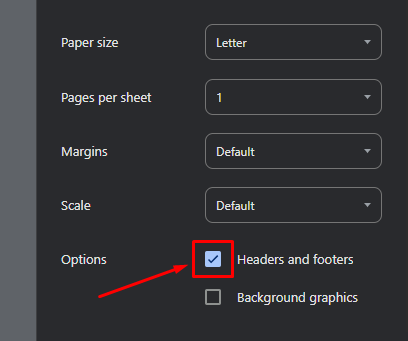
That text is not part of the invoice. It is Chrome’s own page header and footer, which it adds to anything you print, and it lands on the paper alongside your invoice.
Turn it off in the print dialog: open “More settings” and untick “Headers and footers”. Chrome remembers the choice, so this is a one-time fix rather than something to repeat on every invoice.
While you are in that panel: leaving “Background graphics” ticked prints the shaded total row as you see it on screen. The invoice is designed to read correctly either way, so this one is only a matter of taste.
How do I copy an invoice into CollectLane?
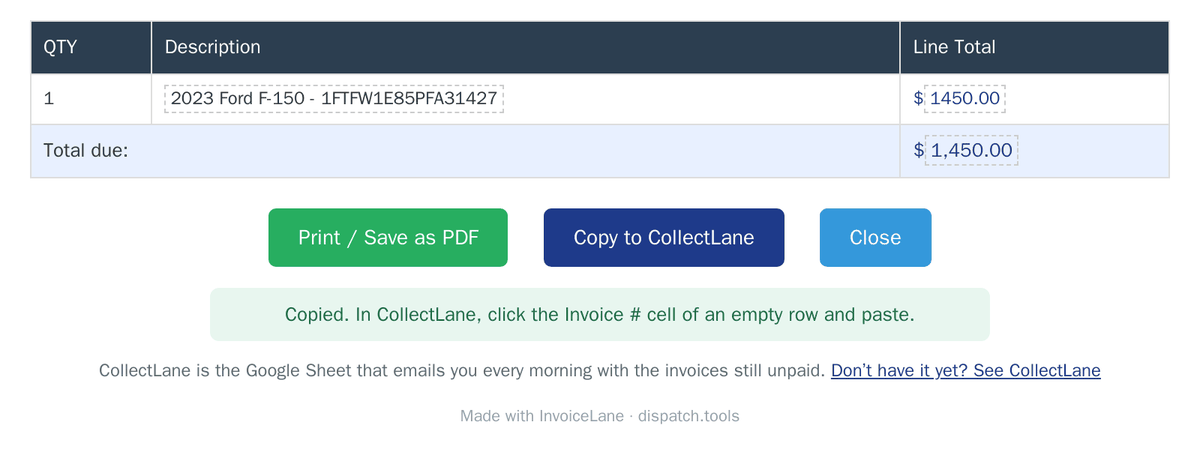
Copy to CollectLane comes with an InvoiceLane licence. It puts the invoice you are looking at on your clipboard as one row for CollectLane, the Google Sheet that emails you about unpaid invoices.
1. Make the invoice and correct anything that needs it. The button copies what is on the invoice page, not the original order.
2. Press Copy to CollectLane. A green message confirms the copy.
3. Open your CollectLane sheet, click the Invoice # cell of the first empty row on the Main tab, and paste (Ctrl+V, or ⌘V on a Mac).
The row fills Invoice #, Client Name, Issue Date, Amount and Status, which is set to Sent. Leave Pay In and Due Date empty: CollectLane fills them from that client's terms on the Settings tab. A client CollectLane has not seen before is added to Settings with your default terms.
If the values land one column off, the paste started in the wrong column. Undo, click the Invoice # cell and paste again. The client is whoever the invoice is billed to, so switch the bill-to on the invoice before copying if a different party pays.
On the free version the button explains that it comes with a licence instead of copying.